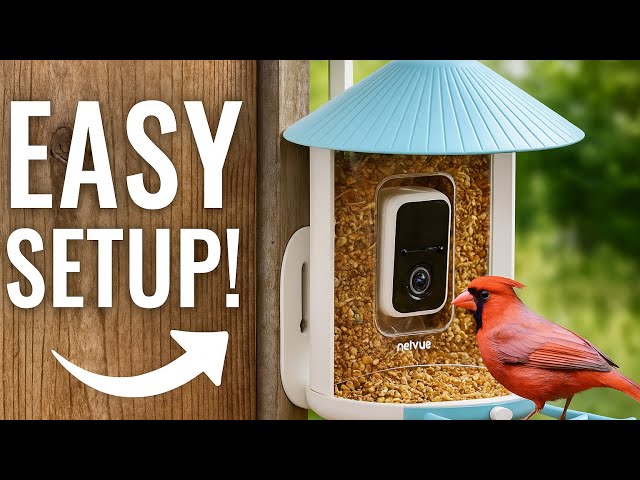
Connecting your Birdfy device to WiFi might seem tricky at first, but it doesn’t have to be. Imagine having your Birdfy up and running in just minutes, ready to deliver the best experience without any hassle.
In this guide, you’ll find simple, step-by-step instructions that anyone can follow. By the end, you’ll know exactly how to link your Birdfy to your home network, so you can enjoy seamless connectivity and all the features it offers. Keep reading—you’re closer than you think to a smoother, smarter setup.
Credit: www.walmart.com
Prepare Your Birdfy Device
Make sure your Birdfy device is fully charged or connected to power. Check that the device is turned on and ready. Place it close to your WiFi router for a strong signal during setup. Keep your WiFi network name (SSID) and password handy. Reset the Birdfy device if it was used before to clear old settings. This helps to avoid connection issues. Ensure your smartphone or computer is connected to the same WiFi network you want Birdfy to join. Disable VPN or proxy on your phone or computer to prevent interference. Update the Birdfy app to the latest version for smooth setup. Follow on-screen instructions carefully during connection steps. A strong WiFi signal and correct password are key for success.
Credit: www.walmart.com
Check Wifi Network Requirements
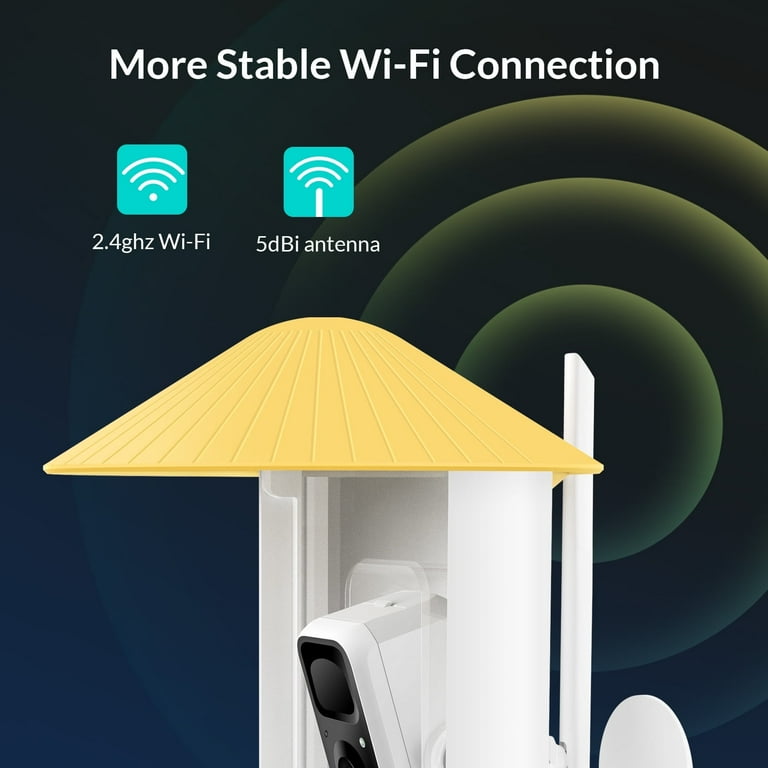
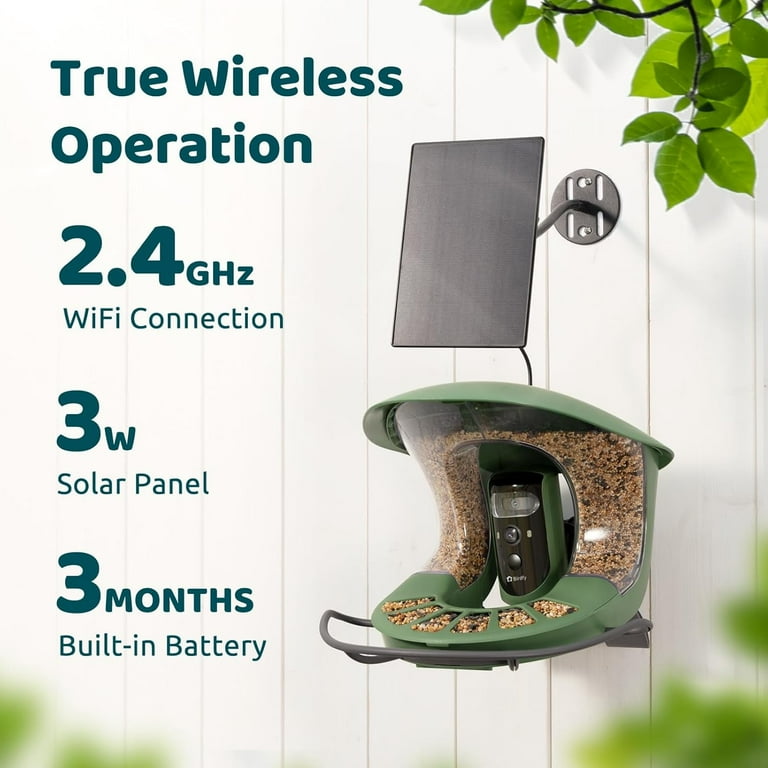
Check that your WiFi network uses a 2.4 GHz frequency. Birdfy devices often do not support 5 GHz networks.
Make sure the WiFi name (SSID) is visible. Hidden networks can cause connection problems.
Confirm the WiFi password is correctand contains no special characters.
Birdfy works best with WPA or WPA2 security. Other types may not connect.
| Requirement | Details |
|---|---|
| Frequency | 2.4 GHz only |
| SSID | Must be visible |
| Password | No special characters |
| Security Type | WPA or WPA2 |
Access Birdfy App Settings
Open the Birdfy app on your phone. Look for the Settings icon, usually a gear symbol. Tap it to enter the settings menu.
Find the Wi-Fi settingssection inside the menu. This is where you connect Birdfy to your Wi-Fi network.
- Make sure your phone’s Wi-Fi is turned on.
- Select your Wi-Fi network from the list shown.
- Enter the Wi-Fi password carefully.
- Tap Connectto link Birdfy with your Wi-Fi.
Connect Birdfy To Wifi Network
Ensure Birdfy is powered on. Check if the WiFi is active. Open Birdfy app on your device. Find the WiFi settings menu. Select your WiFi network from the list. Enter the WiFi password carefully. Make sure it’s correct. Wait for the connection process to finish. A green light means success. If it doesn’t connect, try again. Double-check the password and network name. Move closer to the router if needed. This helps with signal strength.
Troubleshoot Connection Issues
Check the WiFi signal strength. Move Birdfy closer to the router for better connection. Restart your router and Birdfy device. This often fixes many connection problems.
Verify the WiFi password. Enter it carefully without extra spaces. Make sure Birdfy supports your WiFi frequency (2.4 GHz or 5 GHz).
- Turn off any VPN or firewall that might block Birdfy.
- Reset Birdfy’s network settings if connection fails repeatedly.
- Update Birdfy’s firmware to the latest version available.
Ensure your router allows new devices to connect. Sometimes, MAC filtering can block Birdfy. Disable it or add Birdfy’s MAC address to the allowed list.

Credit: www.birdfy.com
Frequently Asked Questions
How Do I Connect Birdfy To My Wifi Network?
Go to Birdfy settings, select WiFi, choose your network, and enter the password to connect.
What To Do If Birdfy Won’t Connect To Wifi?
Restart your Birdfy and router, check the password, and ensure you are near the router.
Can Birdfy Connect To 5ghz Wifi Bands?
Birdfy mainly supports 2. 4GHz WiFi bands for stable connection and better range.
Conclusion
Connecting Birdfy to WiFi is simple with clear steps. Follow the guide carefully and take your time. Make sure your WiFi network is stable and strong. Check your password before entering it. Once connected, Birdfy works smoothly and without trouble.
Enjoy the convenience of a smart device online. Stay patient if any issues appear; try reconnecting. This setup helps you get the most from Birdfy. Now, your device is ready to use every day.