
Are you struggling to connect your Rainbird sprinkler system to WiFi? You’re not alone.
Setting up smart irrigation can seem tricky, but once connected, you’ll control your watering schedule right from your phone—saving time, water, and money. This guide breaks down every step clearly, so you can get your Rainbird online without frustration. Keep reading, and you’ll have your system up and running in no time.
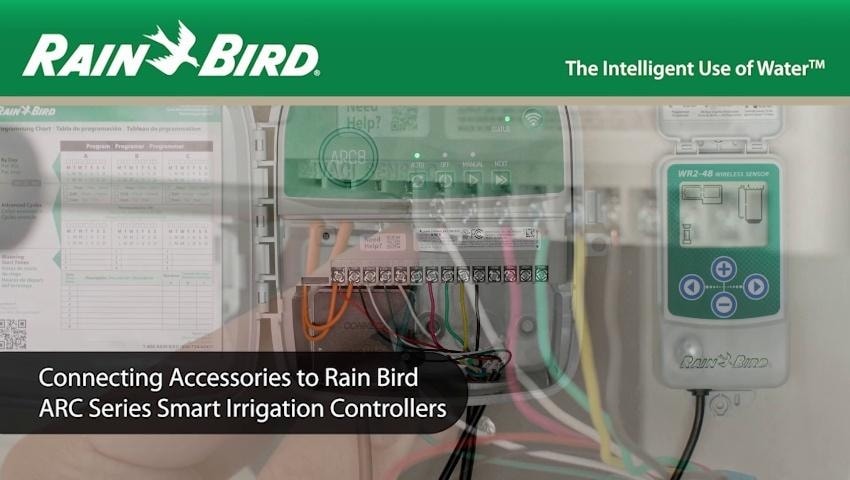
Credit: www.lowes.com
Prepare Your Rainbird Device
Make sure your Rainbird device is close to your WiFi router. This helps with a strong connection.
Check the device’s power supply. Use the original adapter to avoid issues.
Turn on the Rainbird device and wait for the lights to stop blinking. This means it is ready to connect.
Note your WiFi network name (SSID) and password. You will need them to connect the device.
Keep your smartphone or computer nearby. You will use it to complete the setup process.
Check Wifi Network Requirements
Make sure the WiFi network uses 2.4 GHzfrequency. Rain Bird does not support 5 GHz networks. The network name (SSID)must be visible and not hidden. Check that the WiFi password is correct and not too long. Avoid special characters in the password, such as “” or ““, as they might cause connection issues.
The router should be close enough to the Rain Bird controller. Walls and large objects can block the signal. The network must use WPA or WPA2 security. Open networks or those with other security types may not work.
| Requirement | Details |
|---|---|
| Frequency | 2.4 GHz only |
| SSID | Visible, not hidden |
| Password | Correct, no special characters |
| Security | WPA or WPA2 |
| Signal Strength | Strong and near controller |
Download The Rainbird App
First, find the Rainbird app in your app store. It’s free to download. Make sure your device has enough space. Check the app’s compatibility with your device. Click on the install button. The app will start downloading. Wait for the download to finish. Open the app once it’s installed.
Create an account if you don’t have one. Use a strong password. This keeps your account safe. Follow the app’s instructions. Now, your app is ready to connect to Rainbird.

Credit: www.youtube.com
Connect Rainbird To Wifi Step-by-step
Turn on your Rainbird device and ensure it is near your WiFi router. Open the Rainbird app on your smartphone or tablet. Connect your phone to the WiFi network you want your Rainbird to join. In the app, select the option to add a new device. Follow the on-screen instructions to put the Rainbird in pairing mode. The app will search for the Rainbird device automatically.
Select your WiFi network from the list shown in the app. Enter your WiFi password carefully. Press the connect button in the app to link the Rainbird to your WiFi. Wait a few moments while the connection completes. The app will confirm once the Rainbird is connected successfully.
- Keep your Rainbird close to the router during setup.
- Use the correct WiFi password to avoid errors.
- Ensure your phone stays connected to the WiFi network.
Troubleshoot Common Connection Issues
Check your WiFi signal strength.Weak signals cause connection drops. Move Rainbird closer to the router.
Confirm the WiFi password.Enter the correct password, considering uppercase and lowercase letters.
Restart your devices.Power off Rainbird and your router. Wait 30 seconds and turn them on again.
Ensure Rainbird firmware is up to date.Old firmware may cause connection issues.
Verify your network supports 2.4 GHz.Rainbird often works only on 2.4 GHz, not 5 GHz.
| Issue | Possible Cause | Solution |
|---|---|---|
| No connection | Wrong password | Re-enter WiFi password carefully |
| Frequent disconnects | Weak WiFi signal | Move Rainbird closer to router |
| Device not found | Firmware outdated | Update Rainbird firmware |
| Cannot connect | Network frequency mismatch | Use 2.4 GHz WiFi network |

Credit: www.amazon.com
Frequently Asked Questions
How Do I Connect Rainbird To My Wifi Network?
Open the Rainbird app, go to settings, select WiFi setup, then choose your network and enter the password.
What To Do If Rainbird Can’t Find My Wifi?
Check your WiFi signal strength and make sure your device is close to the router during setup.
Can Rainbird Work With 5ghz Wifi Networks?
Rainbird usually connects to 2. 4GHz WiFi only, as 5GHz networks may not be compatible.
Conclusion
Connecting your Rainbird to WiFi is simple and quick. Follow each step carefully for the best results. A strong WiFi signal ensures smooth operation. Always keep your device updated for better performance. Enjoy the convenience of controlling your Rainbird remotely.
Stay connected and save water with ease. Now, your smart irrigation system is ready to work. Feel confident managing your garden from anywhere. Easy setup means more time for what matters.